
Tutor app: lesson schedule, payments and a portal for students and parents
Lessons, payments and reports in one place.


Lessons are over. The questions aren't.
When's the next lesson, did the payment arrive, how much is left to pay, did my son come on Monday. Each question takes a minute, and over a month that adds up to hours. Students and parents can find most of the answers themselves, on their own portal page.
Tuesday, October 13
10:47
From chat chaos to order in one app
Situations every tutor knows, and how Syncoly helps in each.
The schedule in a notebook, changes in the chat
A schedule you don't have to rewrite every time
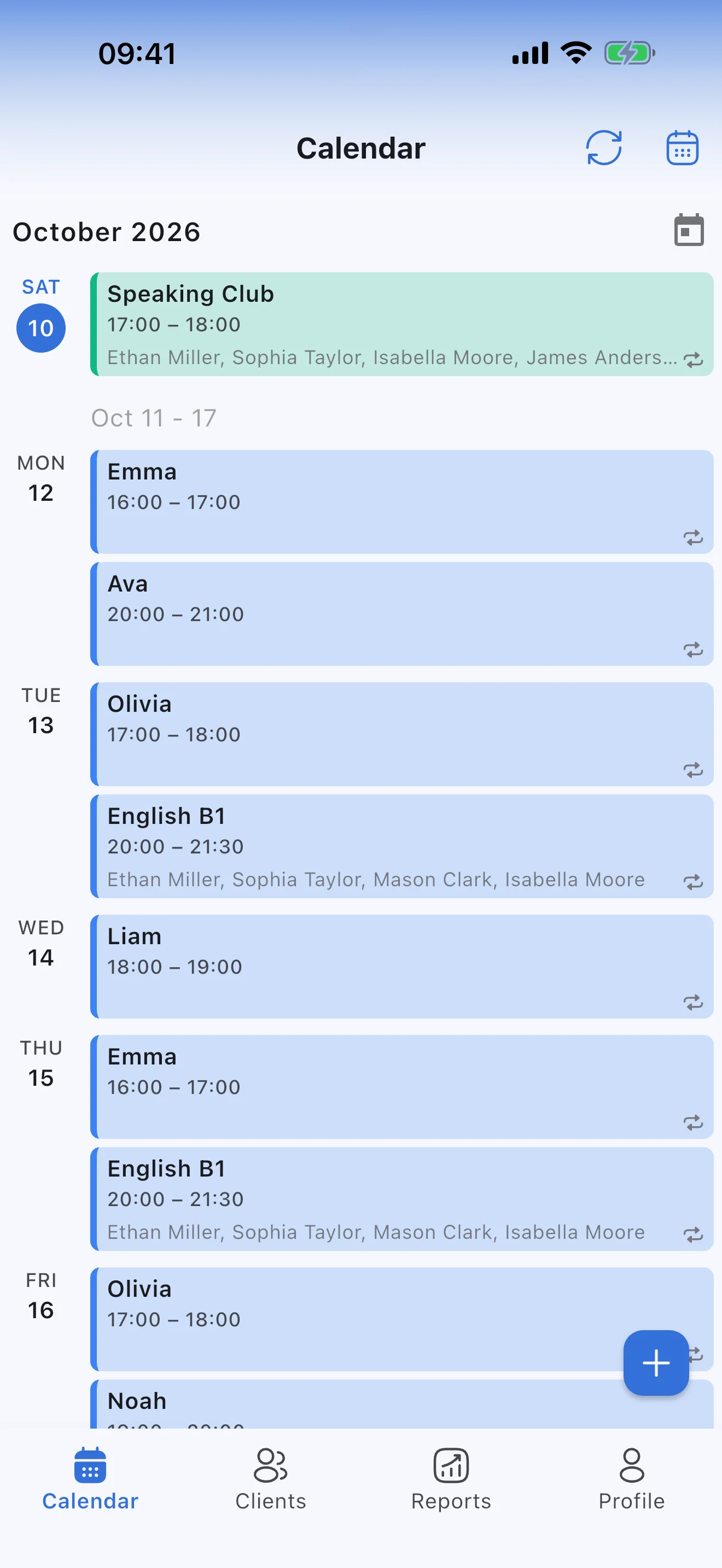
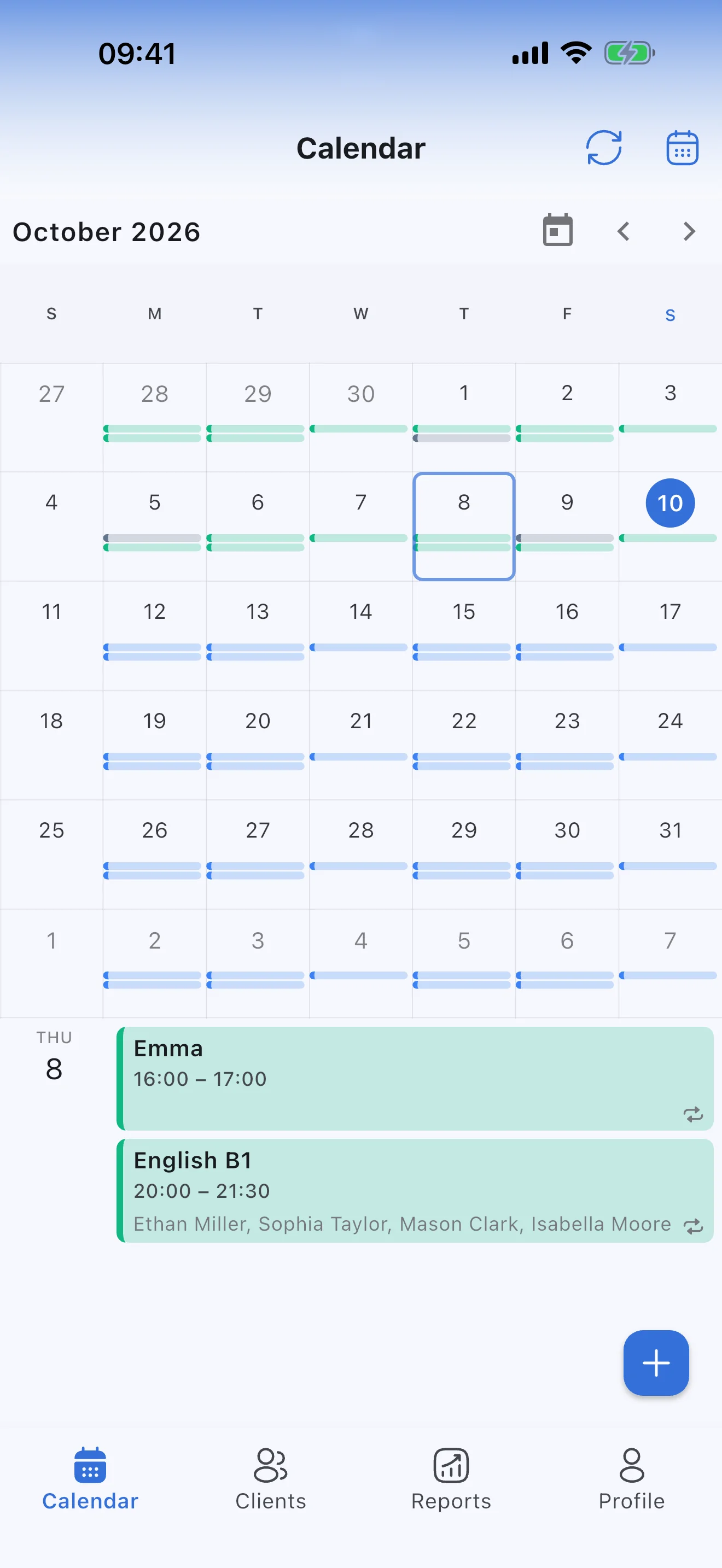
Add a student to the schedule once — say, every Tuesday at 6 pm — and their lessons appear in the calendar week after week, with no end date. Asked to move one? Drag it to another time and choose: this lesson only, or all that follow in the schedule. One-to-one lessons and groups share one calendar.
- Moving or canceling a lesson takes seconds
- Day, week, month or list view, whichever suits you
When's our next lesson?
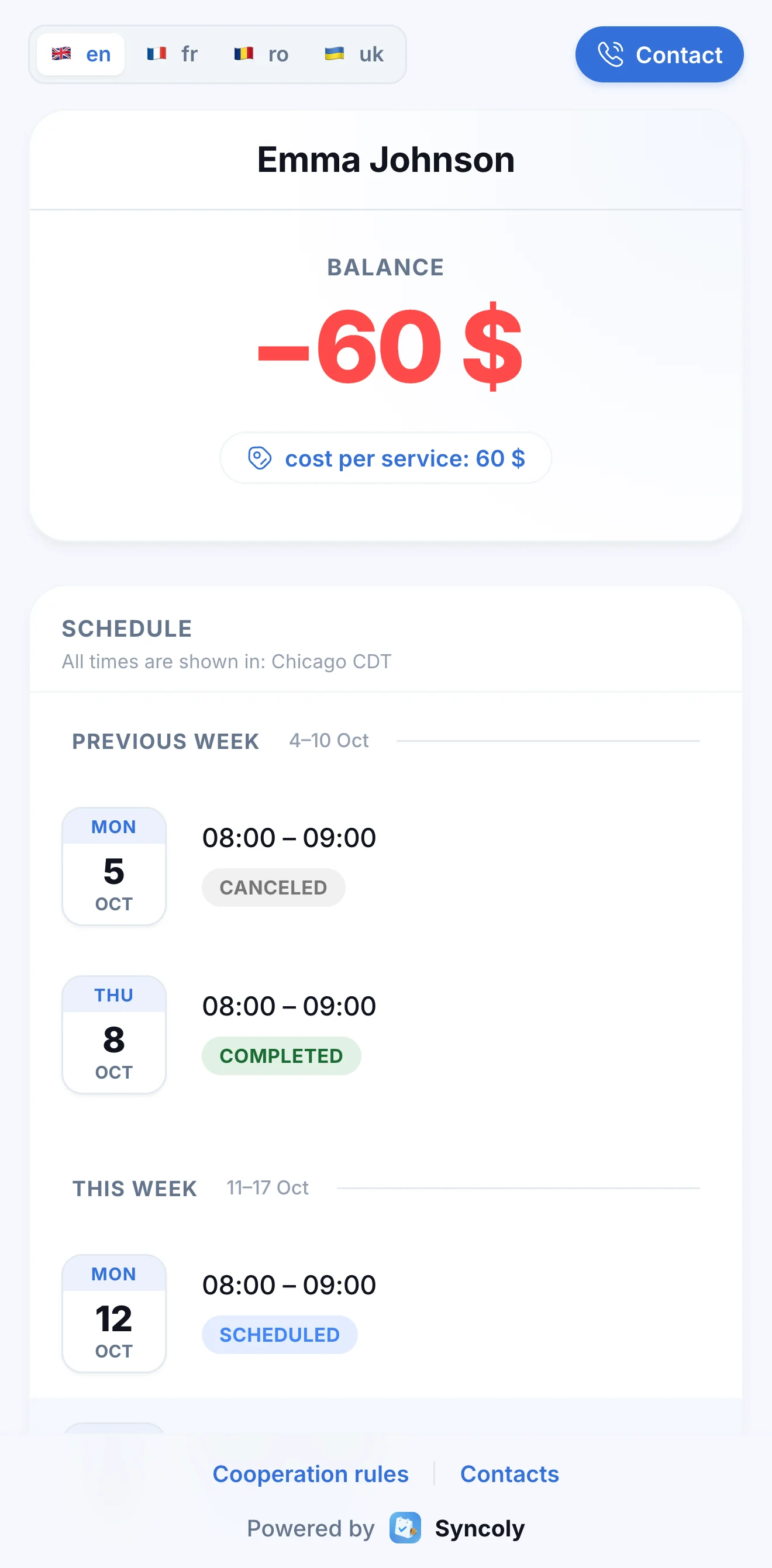
Students check their schedule themselves, in their own time zone
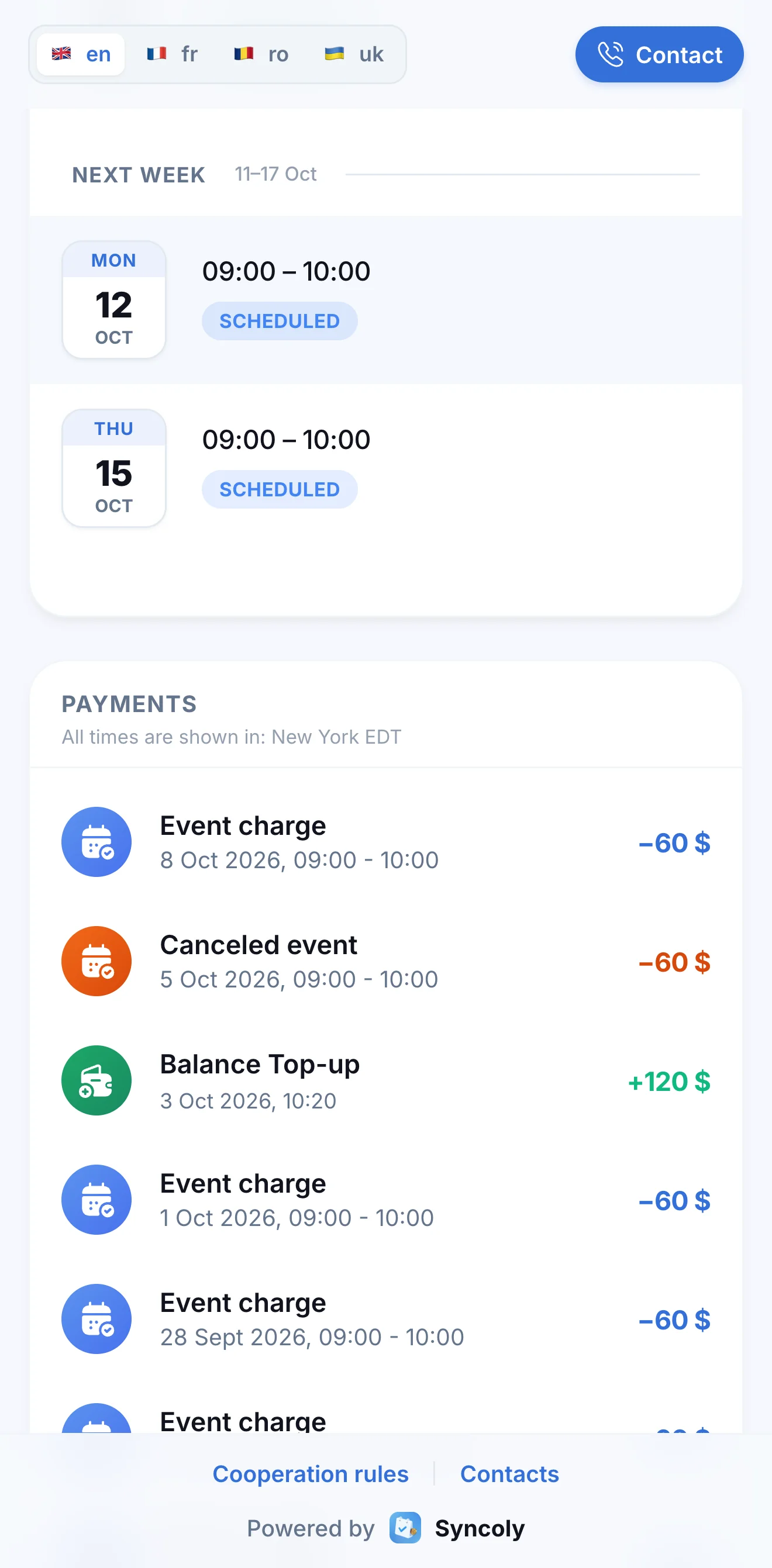
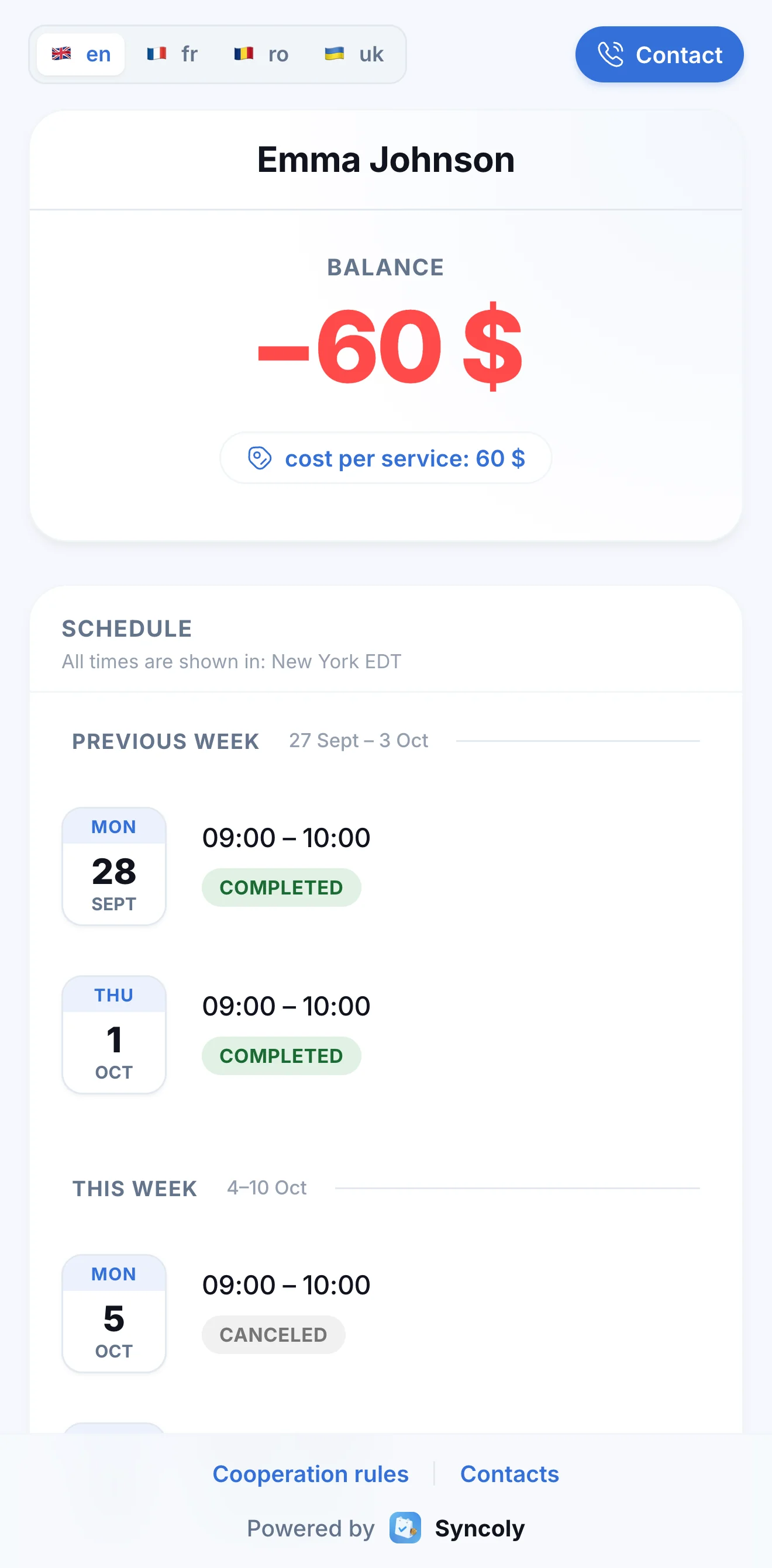
Every student has their own portal link. It shows last week, this week and next week, with each lesson's status: scheduled, completed, canceled or rescheduled. Times appear in the time zone of whoever opens the page: a student in Chicago sees 8:00 for your 9:00 lesson in New York.
- No app and no sign-up, just a link
- Students and parents see status changes on the portal right away
How much notice do you need to cancel?
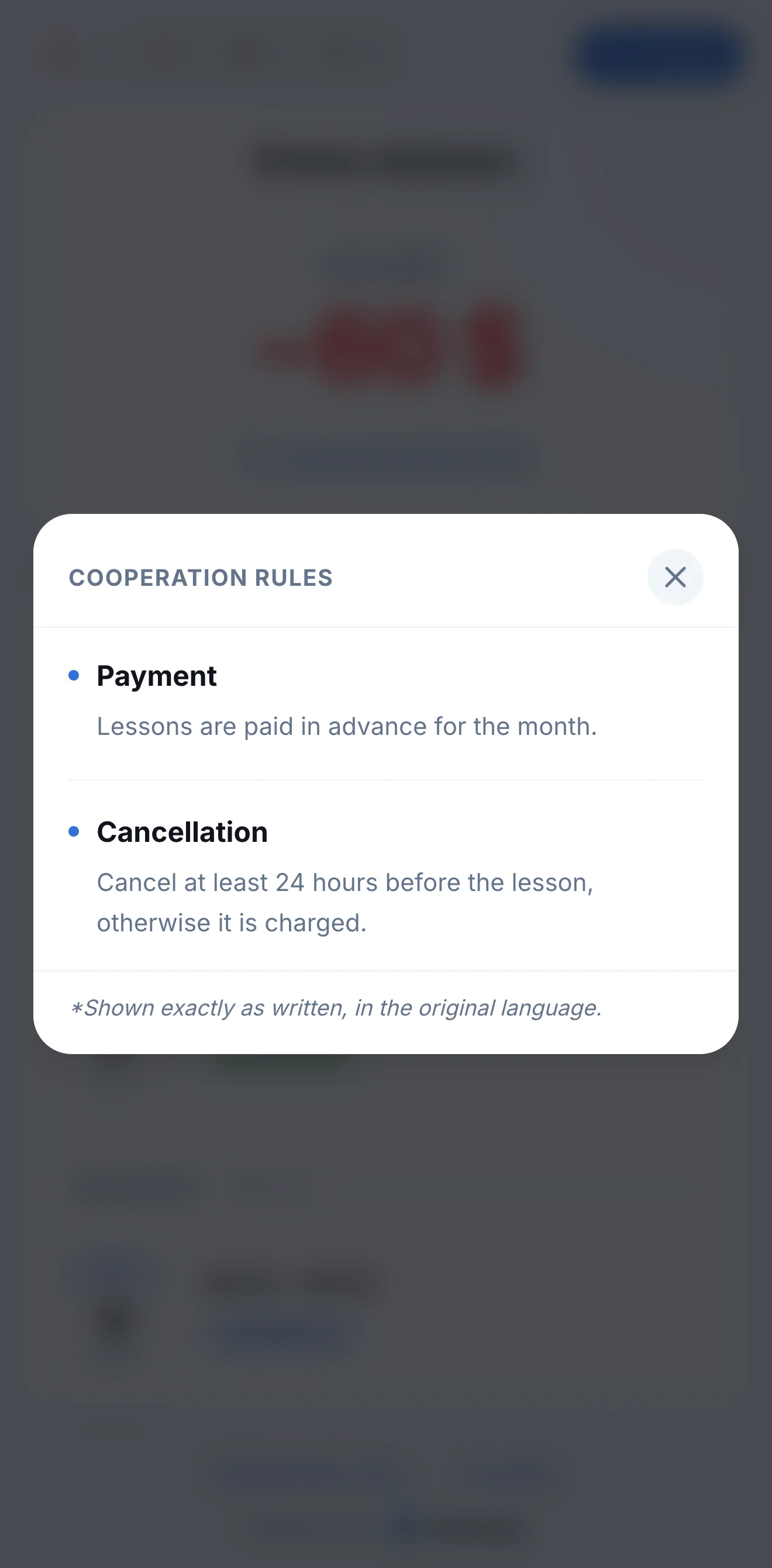
Your rules and contacts on every student's portal
Write your terms once: when and how to pay, how much notice a cancellation needs, what happens if a student is late. Students and parents read the rules on the portal, and the awkward conversations stop. Your contact details sit next to them — name, phone, email, address and website — and your phone number becomes a Contact button at the top of the page.
- Up to 15 rules, each with a short heading
- Change a rule and the portal shows the new version at once
A cancellation an hour before the lesson
Late cancellations: you decide whether to charge
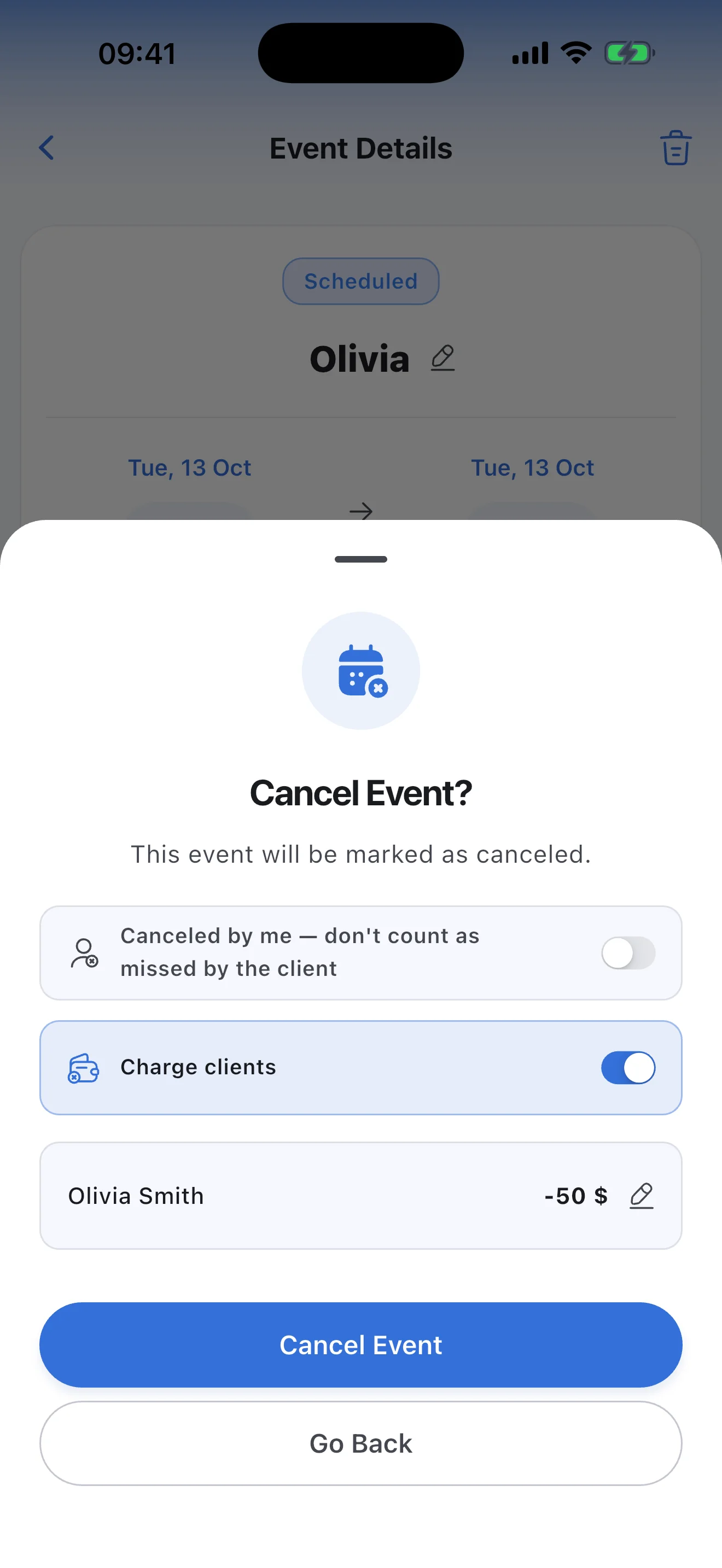
When you cancel a lesson, turn on "Charge clients" and the student is charged their usual price, or another amount for this lesson only. If you called the lesson off yourself, turn on "Canceled by me" instead: the student pays nothing and it doesn't count as their miss.
- Reports count unpaid cancellations as lost income
After a group lesson, working out who owes what
Group lessons: complete once, and each student is charged their own price
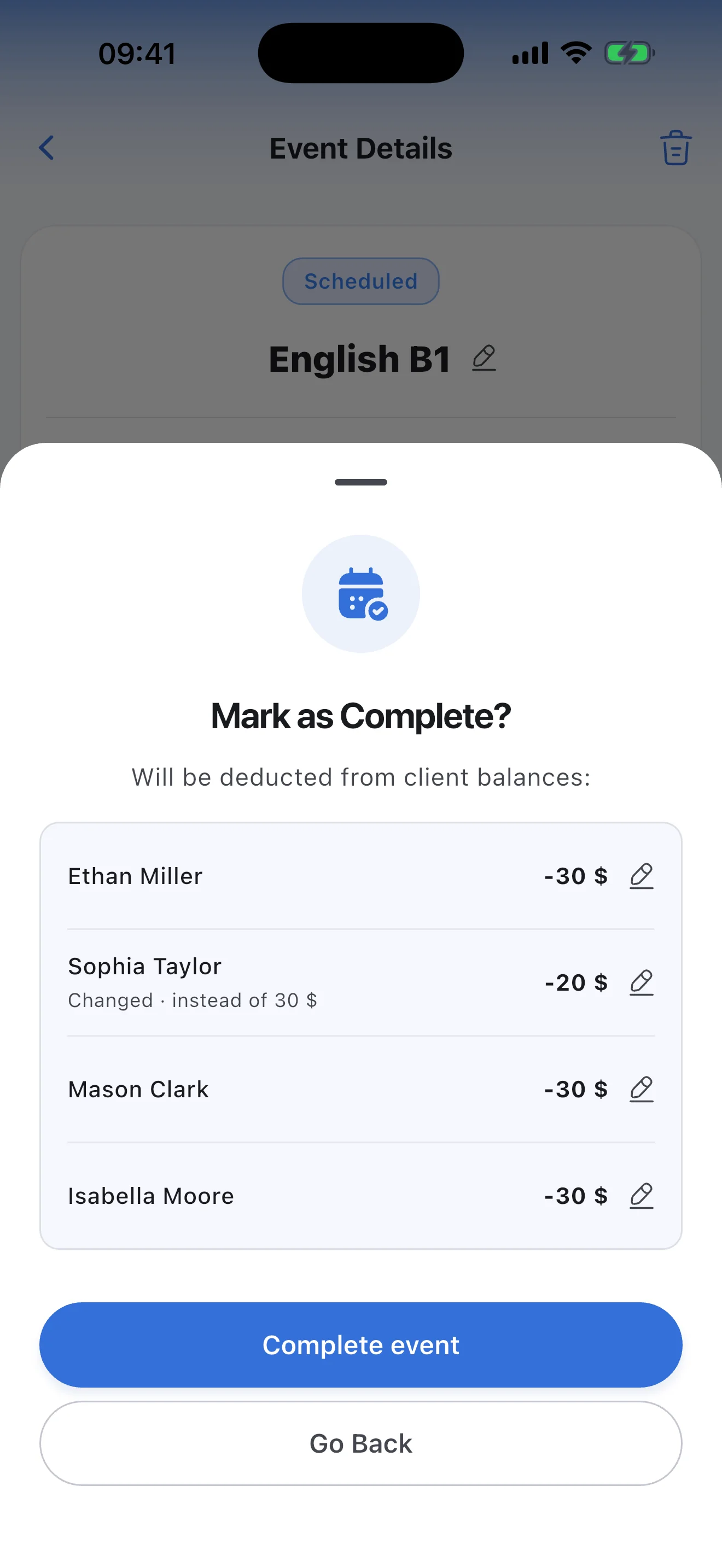
Tap "Complete event" and, before you confirm, Syncoly shows the amount for each student, each at their own lesson price. Giving someone a discount today? Change their amount for this lesson only. Mark anyone who didn't come as absent before you complete, and decide whether to charge them.
- A one-off discount doesn't change the student's usual price
Did you get the payment? How much is left to pay?
Parents see the balance, payments and attendance themselves
Send parents the same link the student has. They see the current balance, the latest payments and charges, and whether their child came to each recent lesson. "Did the money arrive?" and "How much do we owe?" stop coming.
- No app and no password
- Replace the link any time; the old one stops working
Reminding parents about a debt feels awkward
Who owes what, at a glance
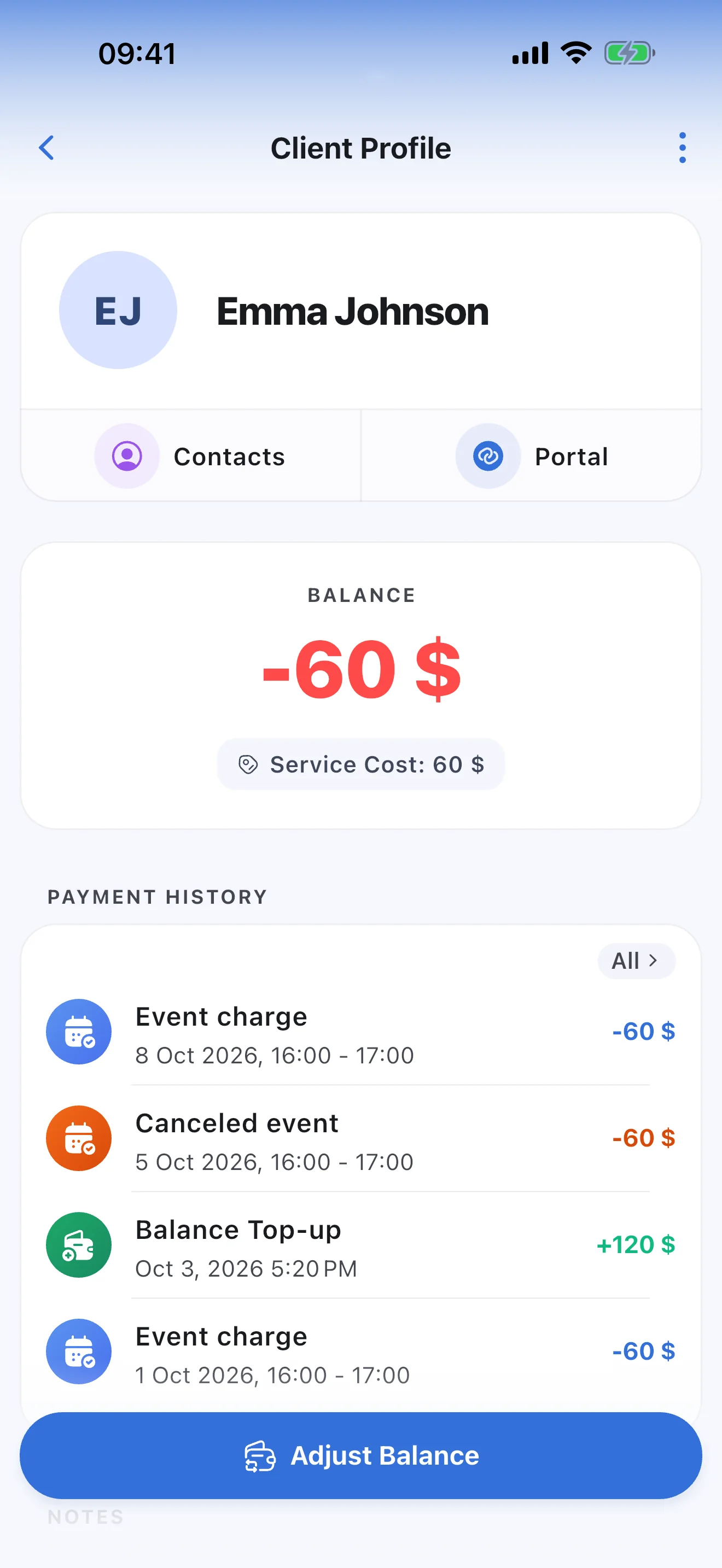
Each student's balance keeps itself: a completed lesson deducts its price, a payment you record adds to it. A red minus is a debt; a plus is a prepayment that shrinks with every lesson. Parents see the same number on the portal, so instead of a reminder you just send the link.
- A month's prepayment goes in as one amount
How much do I actually earn in a month?
Your income, without spreadsheets or math
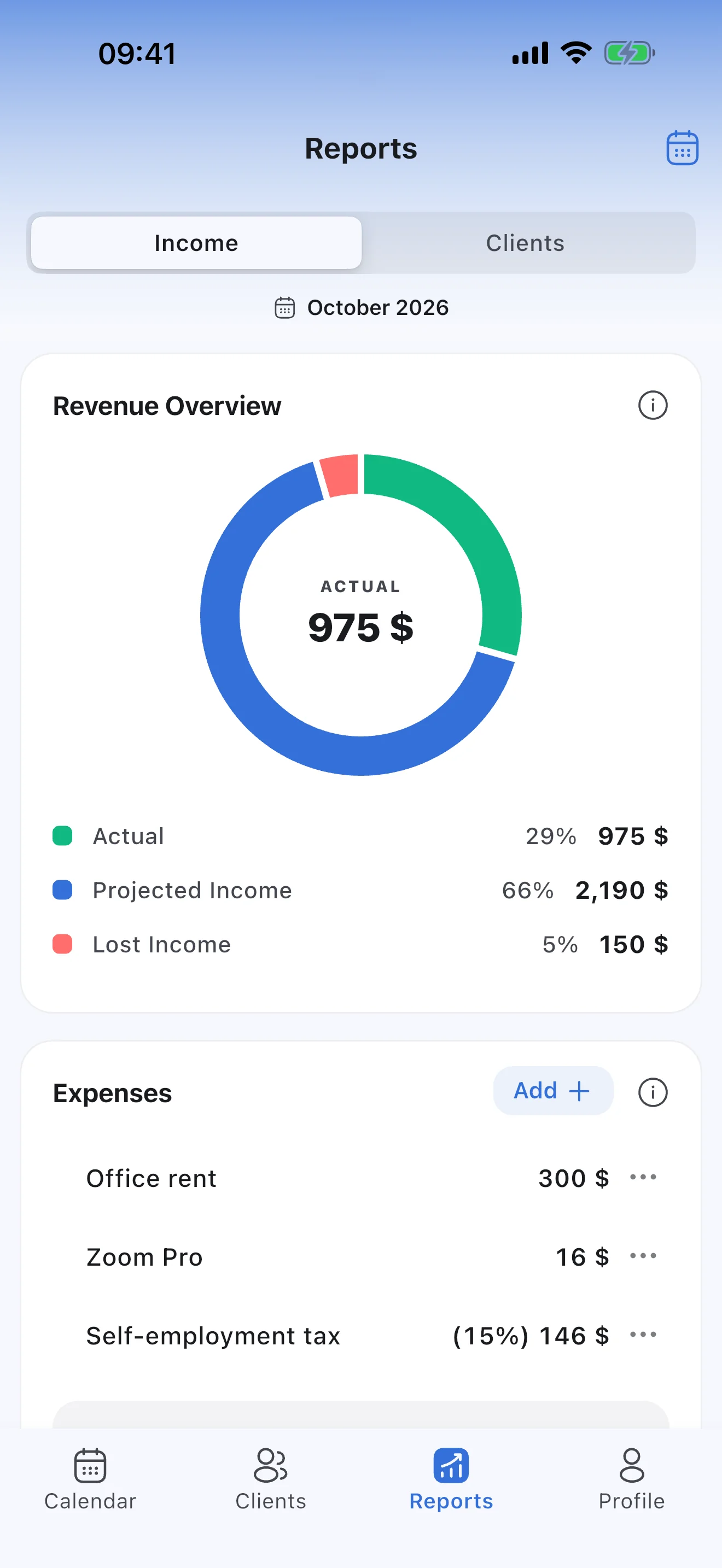
Reports show your actual income, what your scheduled lessons will still bring by the end of the month, and what unpaid misses and cancellations cost you. A three-month comparison shows how your income is changing.
- Each student's attendance: lessons held and missed
- Top-ups aren't income: only what you charge for lessons counts
What's left after rent and tax?
Expense tracking and net profit
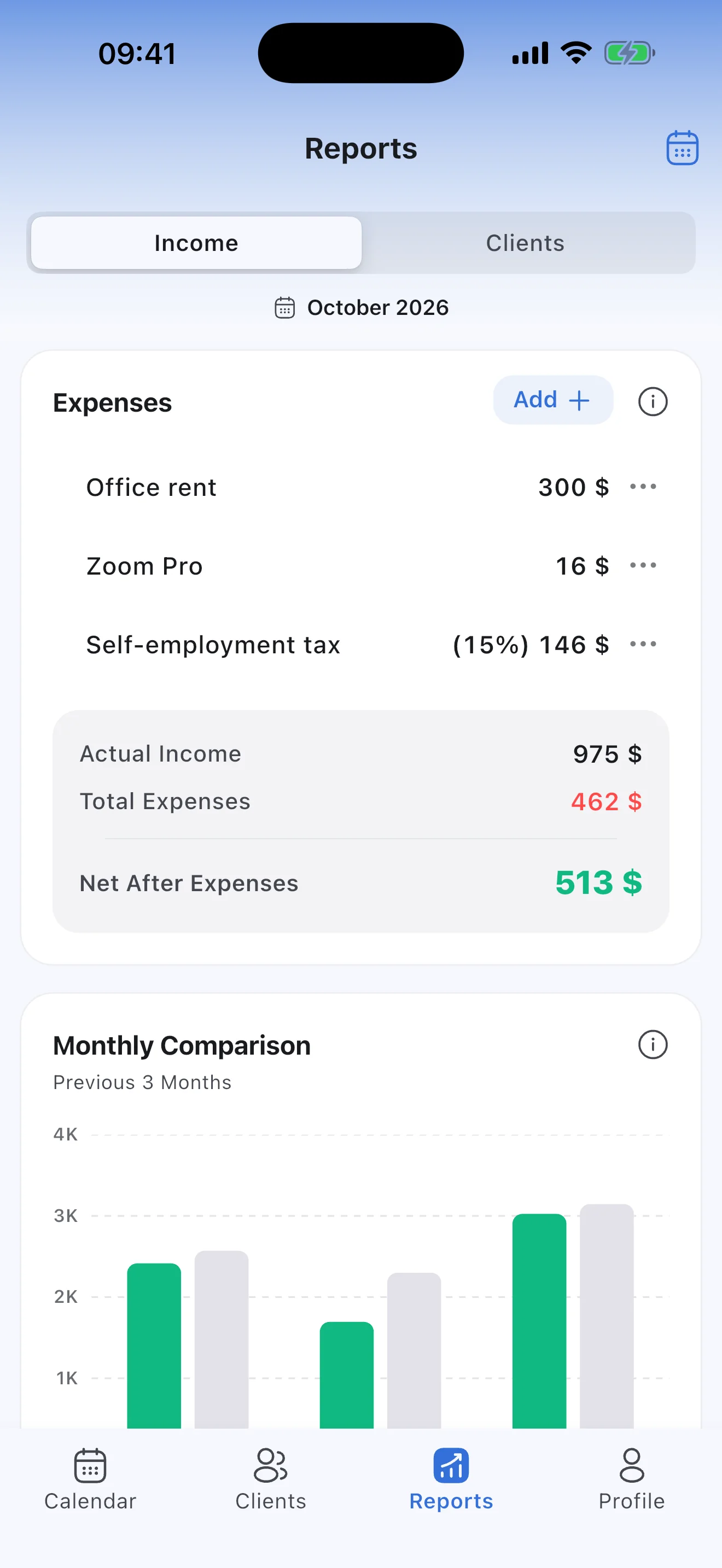
Add your expenses: office rent or Zoom as a fixed amount, tax as a percentage of income. The report subtracts them from what you've earned and shows what's left for you.
- Expenses can repeat every month
- A percentage is taken from the month's actual income
Good to know
- Syncoly doesn't take card payments: you record payments in the app yourself.
- Students don't book lessons themselves: you keep the schedule.
Still have questions?
How the portal, payments, reports and subscription work: the answers are in the FAQ.
Coach or personal trainer? Syncoly for trainers →
Your schedule and your income, finally in sync.
Join the professionals already running their business on Syncoly.
Scan with your phone's camera